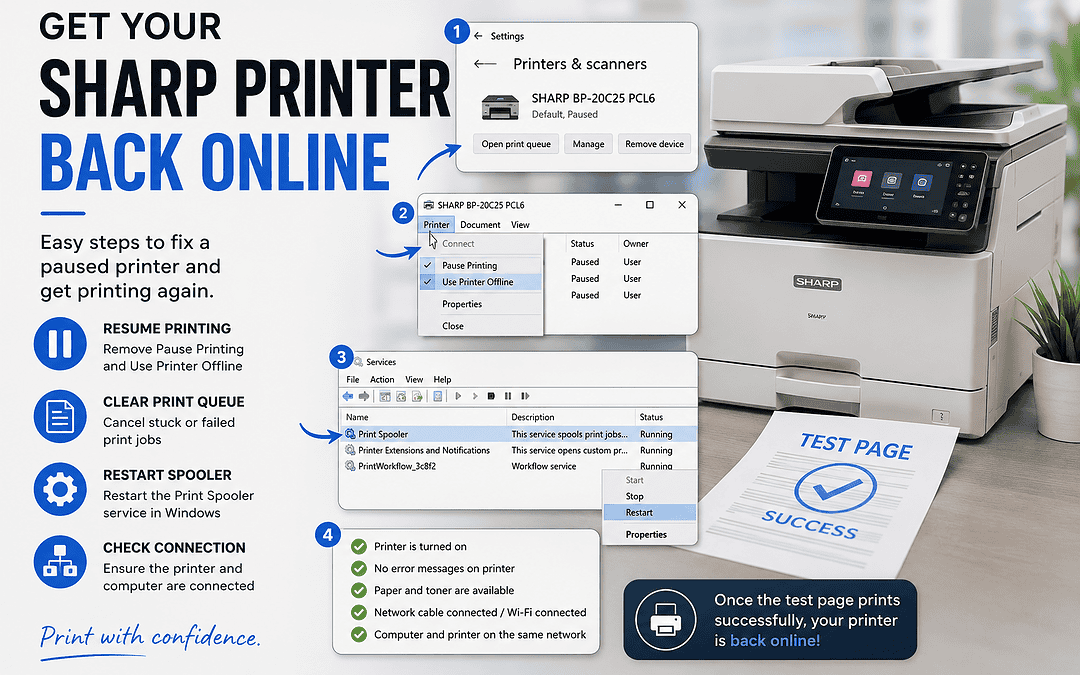
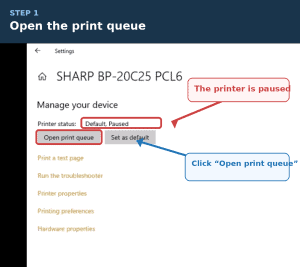
When the printer status shows “Default, Paused”, the printer is connected to the computer, but Windows has temporarily stopped sending print jobs to it.
Step 1: Open the Print Queue
- Open Settings on the computer.
- Go to Bluetooth & devices.
- Select Printers & scanners.
- Select SHARP BP-20C25 PCL6.
- Click Open print queue.
Step 2: Resume Printing
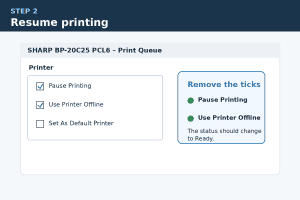
In the print queue window:
- Select Printer from the menu at the top.
- Remove the tick next to Pause Printing.
- Remove the tick next to Use Printer Offline, if this option is selected.
The printer status should change from Paused to Ready.
Step 3: Clear Stuck Print Jobs
Old or failed print jobs may prevent new documents from printing.
- Select each document in the print queue.
- Right-click the document and select Cancel.
- Close and reopen the print queue.
- Send a new test document to the printer.
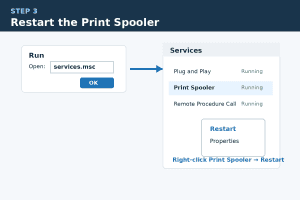
Step 4: Restart the Print Spooler
When the printer remains paused or unresponsive:
- Press Windows key + R.
- Enter:
services.msc- Press Enter.
- Find Print Spooler in the list of services.
- Right-click Print Spooler.
- Select Restart.
Step 5: Confirm the Printer Connection
Check that:
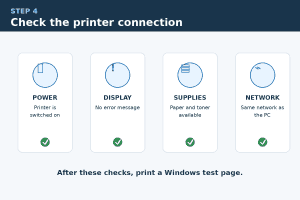
- The printer is switched on.
- No error message is displayed on the printer screen.
- Paper and toner are available.
- The network cable is connected, or the printer is connected to the correct Wi-Fi network.
- The computer and printer are connected to the same network.